Tmux Cheat Sheet

Tmux is a terminal multiplexer that helps you manage multiple tasks and workflows.
With tmux, you can:
- Sessions: Preserve your work and keep tasks running, even if you log out or disconnect
- Windows: Create separate workspaces for different projects or tools within the same session
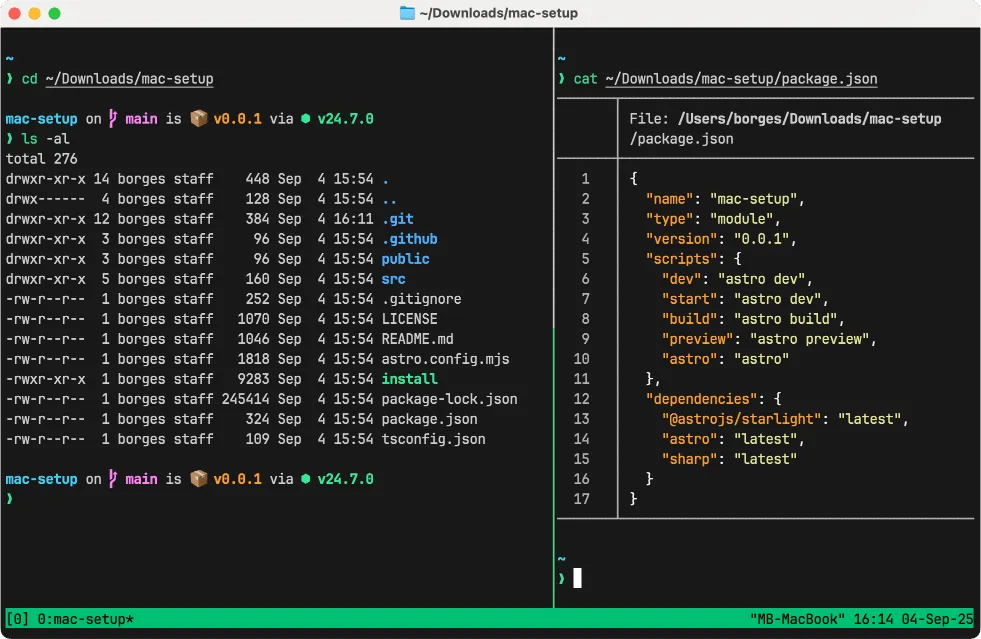
- Panes: Split a window into multiple views so you can monitor and interact with several processes side by side
Installing tmux
Section titled “Installing tmux”-
Linux: often pre-installed.
-
macOS:
Terminal window brew install tmux -
Windows: Use via WSL (Windows Subsystem for Linux)
Terminal window sudo apt updatesudo apt install tmux
Starting and exiting tmux sessions
Section titled “Starting and exiting tmux sessions”Start a default session:
tmuxStart a named session:
tmux new -s <session-name>Detach from a session:
Leave the current tmux session running in the background so you can come back to it later.
Ctrl-b dExit a session:
Close tmux completely. This will terminate the application and end all running sessions.
Ctrl-dManaging tmux sessions
Section titled “Managing tmux sessions”List sessions:
tmux list-sessions
tmux ls
Attach to a session:
tmux attach -t <session-name>
tmux a -t <session-name>
Kill a session:
tmux kill-session -t <session-name>Kill all sessions:
tmux kill-serverTmux sessions
Section titled “Tmux sessions”Rename current session:
Ctrl-b $Choose a session from a list:
Ctrl-b sClose a session:
Ctrl-dTmux windows
Section titled “Tmux windows”Create a new window:
Ctrl-b cRename a window:
Ctrl-b ,Move to next / previous window:
Ctrl-b nCtrl-b pGo to a specific window:
Ctrl-b 0Ctrl-b ...Ctrl-b 9List windows:
Ctrl-b wClose window:
Ctrl-b &Tmux panes
Section titled “Tmux panes”Split vertically:
Ctrl-b %Split horizontally:
Ctrl-b "Move between panes:
Ctrl-b ← ↓ ↑ →Resize a pane:
Ctrl-b hold Ctrl ← ↓ ↑ →Resize a pane (macOS only):
Ctrl-b hold Shift + Option ← ↓ ↑ →Maximize/minimize a pane:
Ctrl-b zChange layout:
Ctrl-b SpaceClose a pane:
Ctrl-dSearching in tmux
Section titled “Searching in tmux”You can search through your tmux history using copy mode. This allows you to scroll back and find specific text in the buffer.
-
Enter tmux copy mode:
Ctrl-b [ -
Start a search:
Search downwards:
Ctrl-sSearch upwards:
Ctrl-r -
Type your search term and press
Enter. -
Navigate through matches:
- Press
nto jump to the next occurrence. - Press
Nto jump to the previous occurrence.
- Press
-
Exit copy mode:
Press
qorEscapetwice to exit copy mode.**
Searching for a window in tmux
Section titled “Searching for a window in tmux”When you have multiple windows open, you can quickly jump to one based on text currently displayed inside it.
-
Open the find-window prompt:
Ctrl-b f -
Type your search term:
Type the text you are looking for, then press
Enter. -
Select the matching window:
If there’s only one match, tmux will switch to it automatically.
If multiple windows match, you’ll see a list and can choose the one you want.